How to clear cookies in Safari on a Mac
Safari keeps cookies with other site data (caches, local storage) and manages them in one place.
All sites:
- Open Safari > Settings (or press
Cmd + ,) and click Privacy. - Click Manage Website Data….
- Click Remove All, then confirm.
One site:
- In the same Manage Website Data window, type the site's name in the search field.
- Select it and click Remove.
Cookies and history together: choose History > Clear History… in the menu bar, pick a time range, and click Clear History. This removes cookies, cache and browsing history for that period in one go.
To stop most tracking cookies without breaking sites, leave Prevent cross-site tracking turned on in the Privacy settings (it's on by default). Block all cookies is also there, but it breaks sign-ins on many sites, so most people should leave it off.
Cookies are tiny. Find what's actually big.
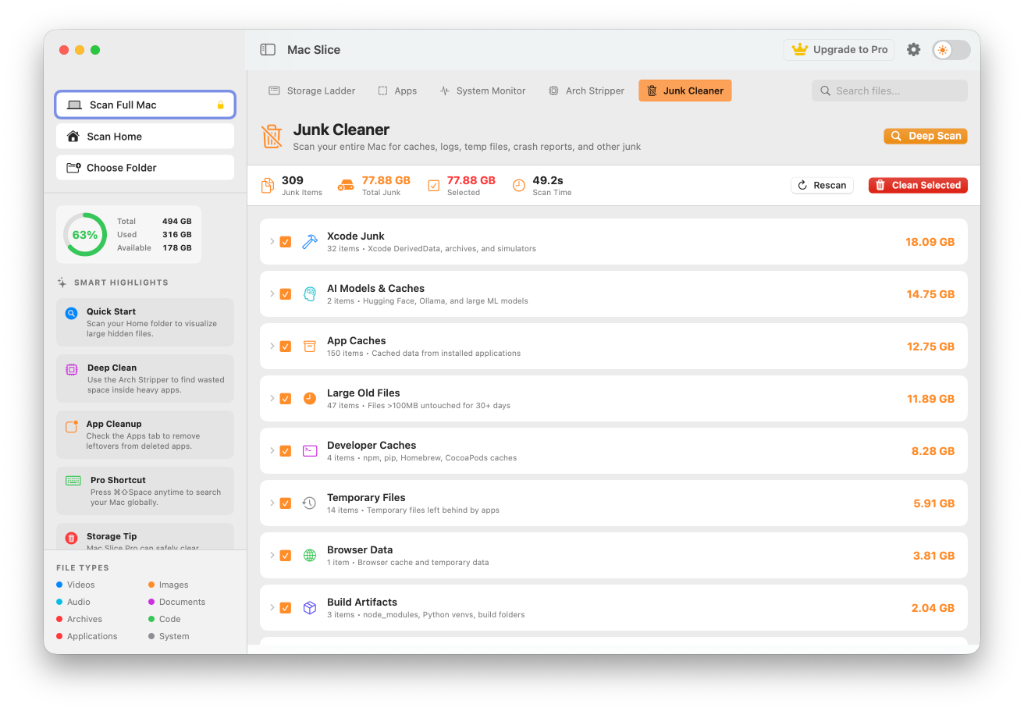
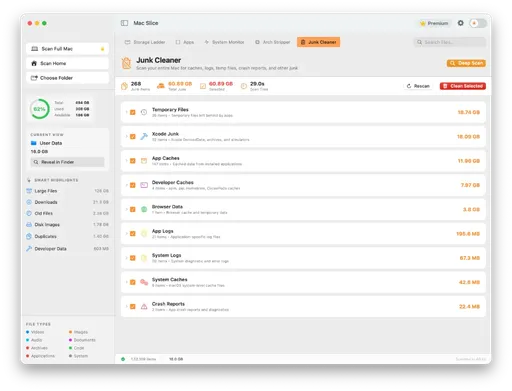
Clearing cookies won't free up space; they're only a few kilobytes. If your Mac is full, the real culprits are hidden Library folders, old backups, and app caches. Mac Slice shows what is actually filling your Mac, drawn to scale, for free. Pro clears it safely in one click.
Get Mac Slice Pro · $11.99✓ One-time payment · 15-day guarantee
How to clear cookies in Chrome on a Mac
All sites:
- Open Chrome and click Chrome > Clear Browsing Data… in the top menu bar (or press
Cmd + Shift + Delete). - Check the box for Cookies and other site data.
- Select a time range (like All time) from the dropdown and click Clear data.
One site:
- Go to Chrome > Settings and click Privacy and security.
- Click Third-party cookies, then click See all site data and permissions.
- Search for the specific website in the top right, then click the trash can icon next to it.
Cookies and history together: When using the Clear Browsing Data window from step 1, simply check Browsing history and Cached images and files alongside the cookies option to wipe everything at once.
How to clear cookies in Firefox on a Mac
All sites:
- Go to Firefox > Settings and select Privacy & Security in the left sidebar.
- Scroll down to the Cookies and Site Data section and click Clear Data….
- Make sure Cookies and Site Data is checked and click Clear.
One site:
- In that same Cookies and Site Data section, click Manage Data….
- Type the website's name into the search bar.
- Select the site, click Remove Selected, and then hit Save Changes.
Cookies and history together: Under the History section on the same Privacy & Security page, click Clear History…. Check the boxes for Cookies, Cache, and Browsing & Download History, choose a time range, and click Clear.
How to clear cookies in Microsoft Edge on a Mac
All sites:
- Open Edge and go to Microsoft Edge > Settings.
- Click Privacy, search, and services in the sidebar.
- Under Clear browsing data, click Choose what to clear.
- Check Cookies and other site data and click Clear now.
One site:
- In the Settings sidebar, click Cookies and site permissions.
- Click Manage and delete cookies and site data, then See all cookies and site data.
- Search for the site and click the trash can icon.
Cookies and history together: In the Clear browsing data menu, simply check the boxes for Browsing history and Cached images and files before hitting Clear now.
What happens when you clear cookies?
Clearing cookies on a Mac signs you out of every website that used them. It forgets site preferences such as your language, region, and "don't show this again" choices. It empties shopping baskets on sites that store them in cookies, and resets cookie consent banners so they appear again.
Your saved passwords are not affected; those live in the browser's built-in password manager or in iCloud Keychain, not in cookies. Bookmarks and downloads aren't affected either.
Should I clear cookies or cache?
Clear cookies when a site keeps you signed in wrongly, shows the wrong region or account, or won't sign you in at all. Clear the cache when pages look broken, show old content, or load stale images and scripts. The two are separate options in every browser, and clearing the cache keeps you signed in.
Do cookies take up space on a Mac?
Cookies take almost no space. A browser's entire cookie store is usually just a few megabytes at most, because each cookie is a tiny text entry. What people often mistake for "cookie bloat" is actually the browser cache and site storage, which can reach gigabytes, and app caches elsewhere in your Library, which can reach tens of gigabytes.
If you're clearing cookies to free up disk space, it won't help. A storage map like Mac Slice shows the real culprits in one scan.
Is it good to clear cookies on a Mac?
Yes, occasionally clearing cookies is an excellent digital hygiene and privacy practice. Cookies are heavily utilized by ad networks to silently build comprehensive, long-term profiles detailing your browsing habits, purchasing history, and personal interests across thousands of different websites.
By purging these trackers on a regular basis, you break the chain of data collection and make it significantly harder for companies to follow you around the web.
However, there is a trade-off: clearing them too frequently means you will constantly need to log back into your favorite web applications (like Gmail, Netflix, or Twitter) and you'll have to deal with those annoying "Accept Cookies" pop-up banners all over again on every site you visit.
Does clearing cookies delete history?
No, clearing cookies and clearing your browsing history are two completely distinct actions.
When you clear your cookies, you are only deleting the tiny background text files that websites leave on your machine to remember your login state, shopping cart, or site preferences.
Your actual browsing history-the visible list of URLs, domain names, and exact pages you have visited over the past few months-will remain completely untouched and accessible. If you want to cover your tracks completely, you must specifically ensure you are checking the "Delete Browsing History" checkbox in addition to the cookies option when using your browser's clearing tool.
How do I clear the cache on my Mac?
Clearing the cache depends entirely on which browser you are using. To clear the cache in Safari, you must first reveal the hidden developer tools.
Go to Safari > Settings > Advanced and check the box at the very bottom that says "Show Develop menu in menu bar." Once enabled, simply click Develop in the top Apple menu bar and select Empty Caches (or use the shortcut Option + Cmd + E).
In Chrome, you can skip the developer menus entirely; simply press Cmd + Shift + Delete to bring up the Clear Browsing Data menu, ensure only "Cached images and files" is checked, and hit clear.
Should I clear the cache on Safari?
As a general rule, you should only clear the Safari cache if you are actively experiencing a problem with a website.
For example, if a page is loading incorrectly, displaying broken formatting, showing old/outdated content instead of a recent update, or refusing to load a specific web app, clearing the cache forces Safari to download everything fresh.
Unlike cookies, which are mostly for tracking and sessions, caches serve a vital performance purpose. They actually speed up your web browsing significantly by saving heavy images, fonts, and scripts locally so they don't have to be re-downloaded every single time you visit your favorite sites. Constantly clearing your cache will result in a noticeably slower browsing experience and increased data usage.
Will I lose anything if I clear the cache?
No, you will not lose any important personal data or account access. Your saved passwords, bookmarks, browsing history, and downloaded files are stored entirely separately from the web cache.
The only thing you "lose" when clearing the cache are the temporary, pre-downloaded structural files of websites (like logos, CSS styling sheets, and background videos).
Because these files are gone, the only consequence is that websites might take a few seconds longer to load the very next time you visit them, as they have to redownload those assets from the server instead of pulling them instantly from your Mac's hard drive.
What happens if I don't clear cookies?
If you choose to never clear your cookies, you will enjoy a highly convenient browsing experience: your websites will permanently remember your login details, your items will stay in shopping carts for weeks, and your dark mode preferences will always apply instantly.
However, the privacy cost is high. Advertising networks (like Google, Meta, and Amazon) will continue to track your interests across the web using third-party cookies, allowing them to serve you highly targeted, sometimes unsettlingly specific advertisements.
In terms of storage space, ignoring cookies is harmless; even over many years, the cookie files might only accumulate to a few dozen megabytes, which will never cause a true "Storage Full" issue on a modern Mac.
Is browsing history ever really deleted?
When you delete browsing history from Safari, Chrome, or Firefox, it is permanently deleted from your local Mac's hard drive. However, true deletion from the internet is more complicated.
If you are signed into an ecosystem like iCloud (for Safari) or a Google Account (for Chrome), your history may still be saved and synced in your cloud account depending on your specific sync settings. You would need to log into those respective dashboards to delete the cloud copy.
Furthermore, your local browser deletion has no effect on external servers; your Internet Service Provider (ISP), your network administrator (if at work or school), and the individual websites themselves still possess logs of your visits and IP address on their own internal servers.
What should I delete when clearing the cache?
This entirely depends on what your end goal is. If you are trying to fix a broken, glitchy, or stubbornly outdated website, you should delete both Cookies and Cached images and files to ensure a completely fresh reload.
If you are simply trying to cover your tracks, improve your privacy, or stop targeted ads from following you, the cache is irrelevant; you only need to delete Cookies and Browsing History.
If you are trying to free up gigabytes of local storage space on a full Mac, neither option will help much, and you should instead focus on clearing old iOS backups or large hidden folders.
How often should I clear my Safari history?
There is no mandatory schedule or technical requirement to clear your history. Most cybersecurity and privacy experts recommend clearing your cookies and history every few months to routinely sever tracking profiles and force a "reset" on advertising algorithms.
If you are using a shared computer (like a family Mac or a public terminal), you should clear your history and cookies immediately after every single session.
If you are the sole user of a private Mac and value convenience over strict ad-privacy, you may only need to clear it once a year, or whenever a website breaks.
Comments (1)
Alex M. 43 minutes ago
This guide was exactly what I needed! I've been getting tracked by the same ads for weeks, finally cleared them all out.